So, What is Raspberry Pi?
Though the name conjures up images of tasty treats and classic Americana, the Raspberry Pi’s actually got a lot less to do with dessert and a whole lot more to do with tech; so pretty relevant to what we do here!
For those unfamiliar, the Raspberry Pi is a playing-card-sized SBC - a complete computing device housed on a singular PCB - built specifically with DIY in mind. Unlike a lot of other development-centric devices; however, the Raspberry Pi is neither extremely cost prohibitive nor unapproachable for beginners.
In fact, the device is ideal for newbies.
Created to bring computing to all people rather than a select few, it contains most everything you could need to bring a project to fruition hassle-free. This includes an actual Linux-based operating system (appropriately dubbed Raspberry Pi OS), a range of connectivity options from USB to HDMI and beyond, and several programming languages preinstalled. The specs aren’t too shabby either, with all sorts of processor and RAM configurations available depending on model.
Of course, it’s important to note that raw power isn’t necessarily the appeal here. What the Raspberry Pi really excels at is versatility and accessibility.
Just learning to code or merely don’t jive super well with something like C++? Raspberry Pis support Python, Scratch, and several other beginner-friendly languages.
Hate the company’s special OS? You can always scrap it and install a different one. Play around with a range of project types? Raspberry Pi works just as well for machine monitoring and networking as it does for creating retro gaming rigs and smart home hubs! As we said, versatility is the name of the game.
Our Recommended Models
When you hear people talk about the Raspberry Pi, you’ll often notice them talking about it as if it’s one singular thing. This is more a trick of language than anything, though - “Raspberry Pi” used much like “iPhone” has been the last several years.
In reality, the Raspberry Pi is actually a family of devices that covers a whole bunch of separate models, each catering to different developer needs and applications.
And spanning over a decade of products by now? The catalogue of options is far more vast and complicated than ever before.
Don’t want to be left on your own to wade through it all? Here are a few of our favorite models that are well-worth a more in-depth look:
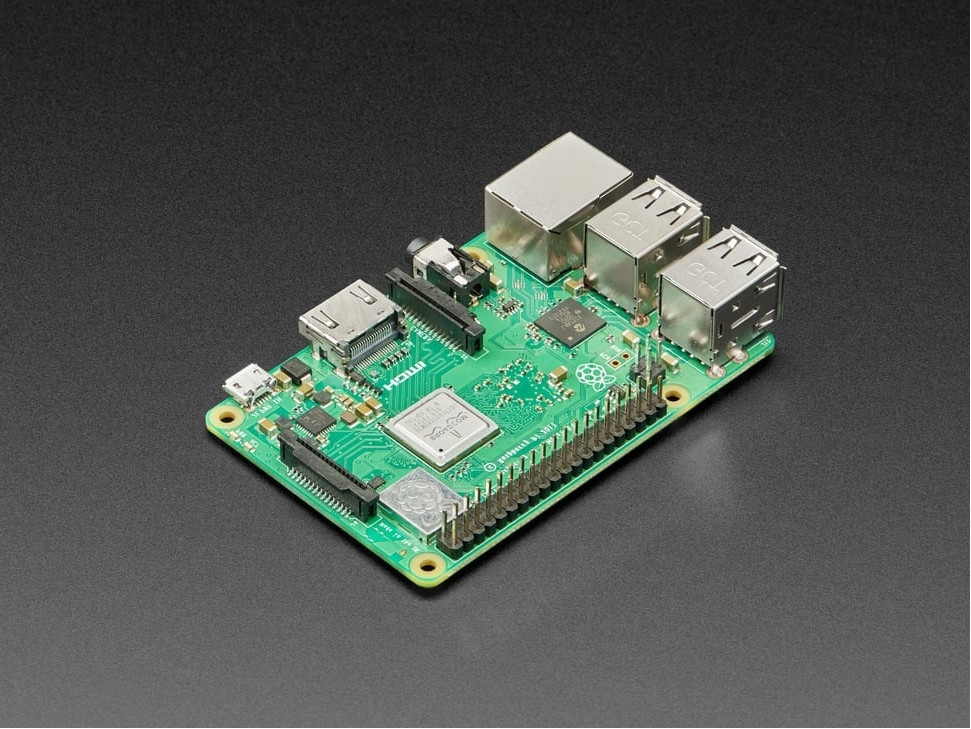
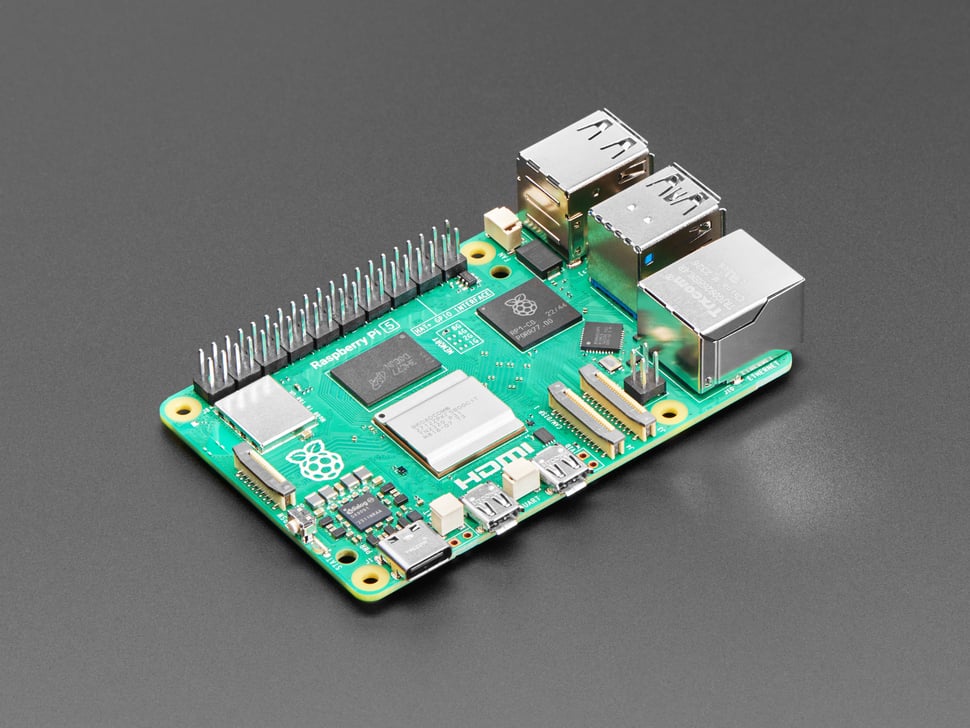
l Raspberry Pi 5
Raspberry Pi’s latest release and worthy follow up to 2019’s 4th generation device. Boasting a Broadcom BCM2712 Cortex-A76 at 2.4-GHz and a 12-core VideoCore VII GPU, it gives twice the performance while (accounting for inflation) offering an even better value than its predecessor. It’s a seriously impressive update, and one that is suitable for just about anything you can throw at it.
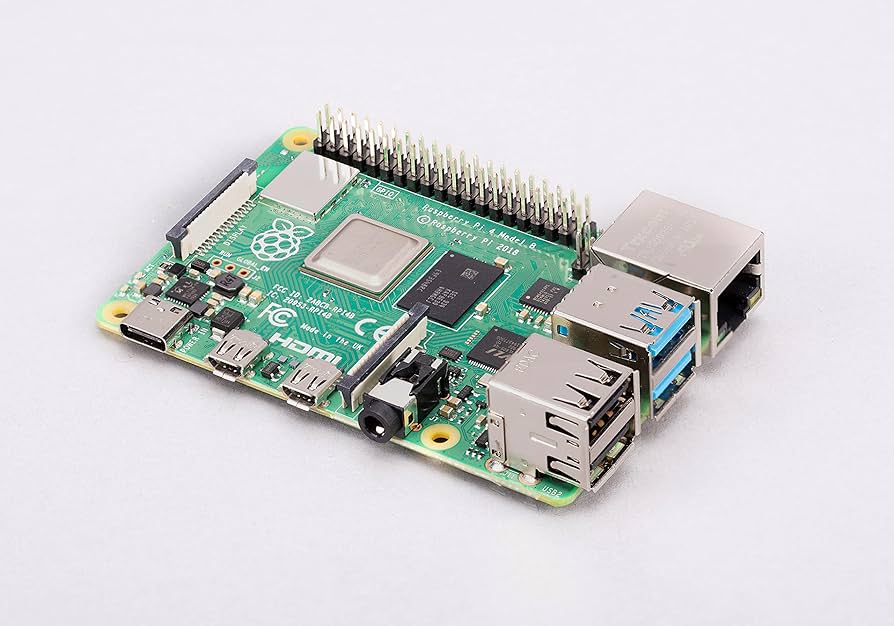
l Raspberry Pi 4 Model B
Though no longer quite the newest or shiniest toy on the block, this 4th gen Model B is still one of Raspberry Pi’s best options. Powerful and robust thanks to the ever-decent Quad-core Cortex-A72 (ARM v8), it remains more than capable of handling complex computing tasks. It even comes packaged with the 40-pin GPIO header notably absent from the Raspberry Pi 5, giving it an edge over the latest and greatest 5 for those working on robotics, automation systems, controllers, etc.
l Raspberry Pi 3 Model B+
Budget conscious and don’t need too much power under the proverbial hood? The Raspberry Pi 3 Model B+ is a good option even now in 2024. Featuring a Quad-core Broadcom BCM2837B0 Cortex-A53 CPU and 1GB of RAM, there’s not a lot of “oomph” here but there’s still more than enough for simple computing or old-school emulation. Since they’re now discontinued, you can find some great deals on Ebay or other resale platforms, too, often coming around less than $25.
l Raspberry Pi Pico
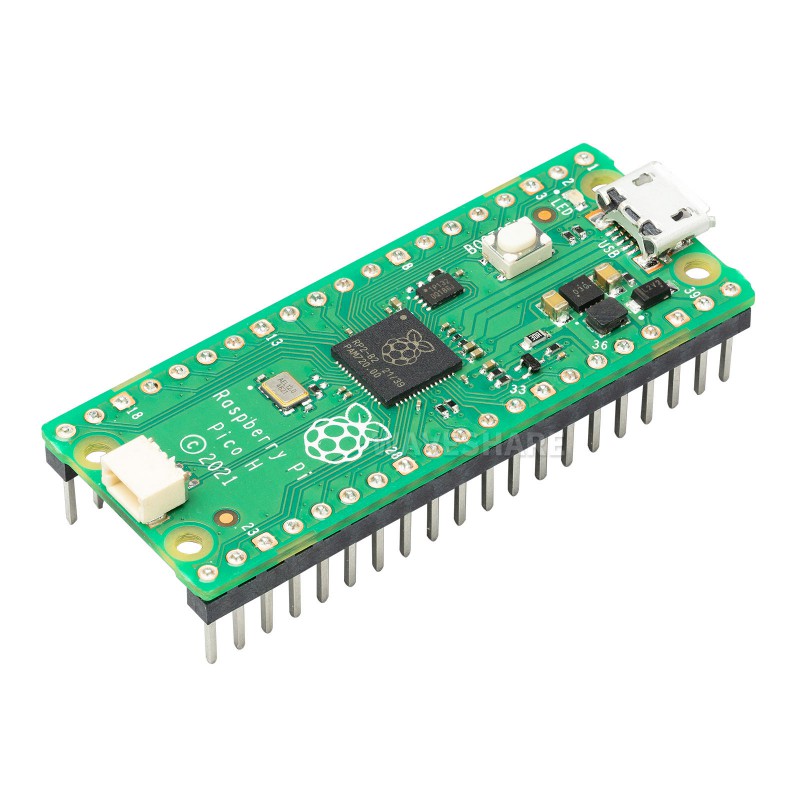
Look, we fully admit it: the Raspberry Pi Pico is a remarkably under-powered device. Its CPU runs at a snail’s pace - 133-MHz, to be exact - and its RAM is measured in mere kBs (yes, you read that right) rather than GBs. So, why then is it included here? The microcontroller is an adorably tiny 1x2 inches, easy to use, and starts around 4 bucks, making it the perfect option for controls creation. Temp gauges, weather sensors, and LED controllers all for less than a cup of coffee? Sign us up.
How to Set Up Your Raspberry Pi
Raspberry Pi devices are excellent pieces of tech for new automation specialists, beginner roboticists, console creators, and all other manner of electronics’ developers. They’re easy to learn, versatile, and not particularly expensive, but that doesn’t mean they aren’t still a little intimidating for the newly-initiated.
If you’re having trouble getting it set up or would simply appreciate some documentation to make sure you do everything right, rest easy. Just follow along see how painless the process can be.
Before we get started, though, you’re going to need a few components:
n A Raspberry Pi board (obviously) - whatever model fits your project requirements
n Micro-SD card - 8GB is the very minimum if you want to install Raspberry Pi OS but we recommend going for at least 16 or 32GB.
n Power adapter - 5-volt 3 amp USB type C for Raspberry Pi 4 or above, 5V 2.5 A micro USB for earlier models
n HDMI Cable - Micro-HDMI to HDMI for 4th and 5th gen devices, standard for everything else
n Computer w/ card reader
n Keyboard and mouse
n HDMI-compatible monitor (for display)
n Case (optional but recommended for protection)
After you’ve gathered all the essentials, it’s time for the initial installation stuff. Luckily, this is very simple and just consists of a few steps:
1. On your PC, download the Raspberry Pi Imager from the company’s official site.
2. Insert your Micro-SD into your PC’s reader and launch the aforementioned tool.
3. For beginners, we suggest sticking with Raspberry Pi OS, so select that from the install options and click ‘write.’
4. Safely eject your card once the formatting process is done and insert it into the Raspberry Pi’s card slot.
5. Connect any peripherals you want to use into the device - keyboard, mouse, monitor, etc.
6. Plug in the power supply and start up your Raspberry Pi.
7. On first boot, you’ll be prompted to set up the OS. Follow the on-screen instructions to choose your locale, connect to the Wi-Fi, and create a user password.
8. After following these instructions, open a terminal and run `sudo apt update` followed by `sudo apt upgrade` to ensure your system is up-to-date.
9. Enjoy your new Raspberry Pi and explore what it can do! We suggest looking up some tutorials online, trying out some programming with the preinstalled IDEs, or diving straight into installing whatever software’s needed to bring your project to life.
- 1.
What is Raspberry Pi?
Created to bring computing to all people rather than a select few, it contains most everything you could need to bring a project to fruition hassle-free. This includes an actual Linux-based operating system (appropriately dubbed Raspberry Pi OS), a range of connectivity options from USB to HDMI and beyond, and several programming languages preinstalled. The specs aren’t too shabby either, with all sorts of processor and RAM configurations available depending on model.
 Sophie
Sophie, an accomplished electronic designer from Canada, holds a Bachelor's degree in Electrical Engineering from McGill University. She excels in developing advanced control systems that integrate mechanical, electrical, and computer engineering technologies. Her expertise particularly lies in working with electronic components. Notably, she has distinguished herself in conducting research involving Arduino and Raspberry Pi.


04 September 2026
05 August 2026
04 July 2026
06 June 2026
07 May 2026